 Use Cases
 Catch Pokémon
 Pokemon GO Tools

 Most Popular
 What's New

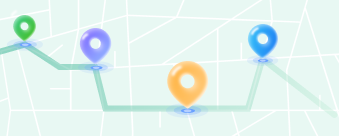
Steady GPS Movement
Move from your current spot and explore nearby places with better control.
 Explore Tools
 Guide
Guide
 Reviews
LocaChange / Use Cases / Virtual Joystick
✣ LocaChange Use Cases
Use a 360° GPS joystick to move in Pokemon GO and MH Now without going outside. Pick a walking, cycling, or driving speed and control each turn on iPhone or Android—no jailbreak or root needed.
 360° Direction Control
From 3.6 to 120 km/h
Auto-Walk & Pause
No mods needed
360° Direction Control
From 3.6 to 120 km/h
Auto-Walk & Pause
No mods needed
 Windows
 macOS
macOS
 iOS
iOS
 Android
3.6 km/h


Encounter #025

 Taipei 101

 Daan Forest Park
Taipei 101
Japan
A GPS joystick lets you fake your phone’s GPS location with a keyboard, mouse, or on-screen control. It creates steady movement in the direction and speed you choose, so your game character can explore the map step by step.
Move from your current spot and explore nearby places with better control.

Use the arrow keys or WASD to turn and move with ease.

Jump to a faraway area, then use the joystick to move around nearby.
Control your direction, speed, and route from one simple screen.
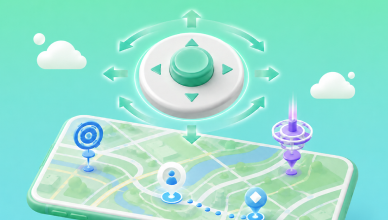
Drag the joystick to turn at any angle and move around PokéStops or Gyms with precision.
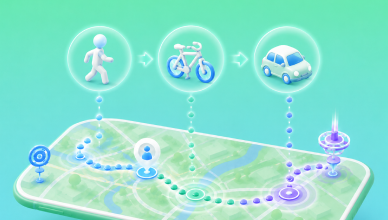
Switch between walking, cycling, and driving speeds to match the way you want to travel.
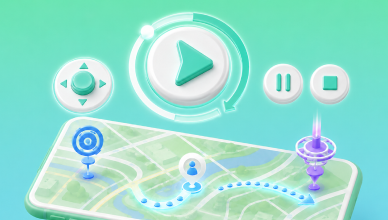
Keep moving hands-free, then turn, pause, or stop whenever you want.
Connect your phone, choose joystick mode, and start moving in three easy steps.
 Step 1
Open LocaChange and connect your phone by Bluetooth, USB, or Wi-Fi. Follow the on-screen steps to allow the connection.
See Next Step →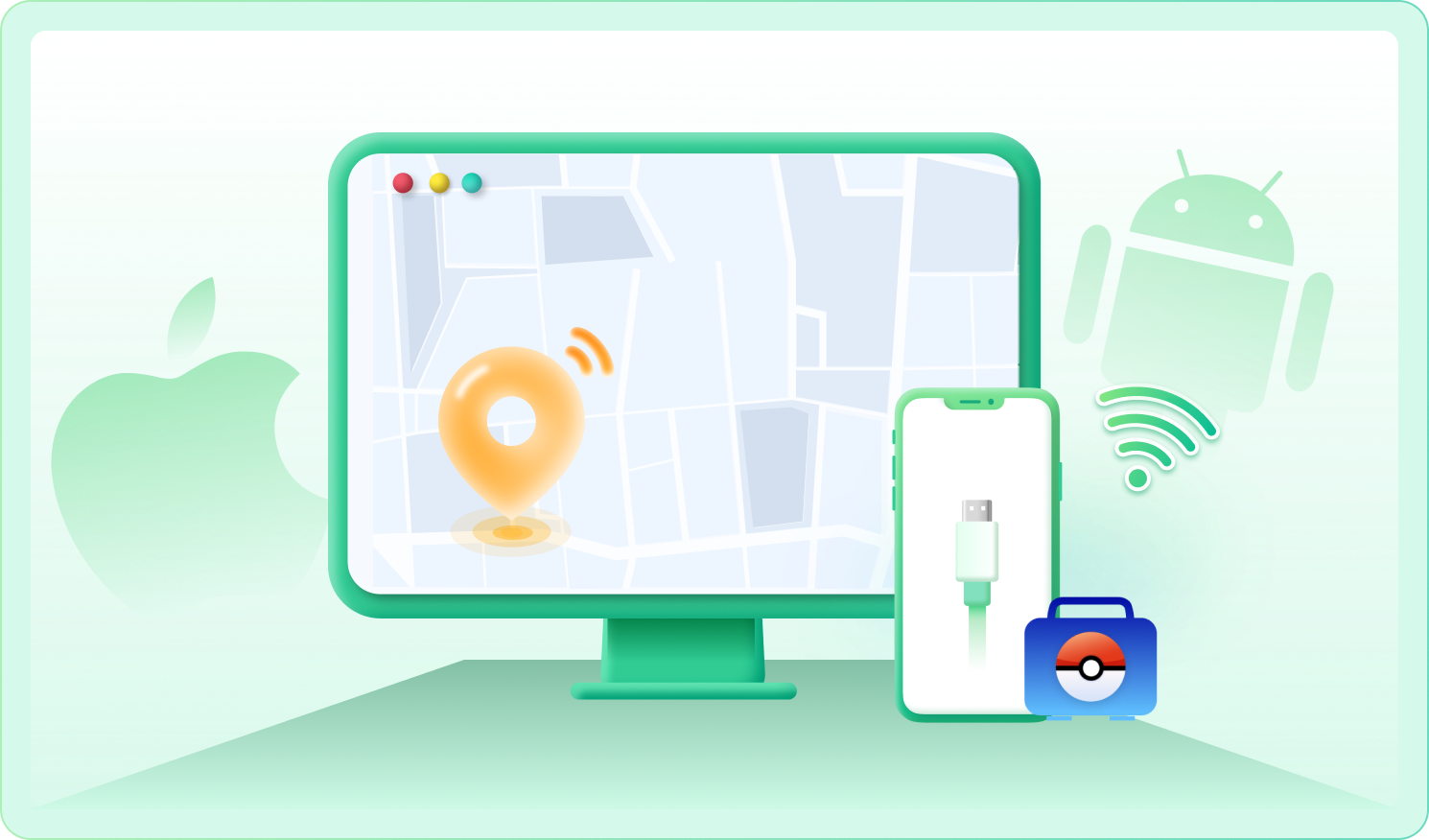
Step 2
Select Pokemon GO, turn on the virtual joystick, and check that the map shows the same place as your phone.
See Next Step →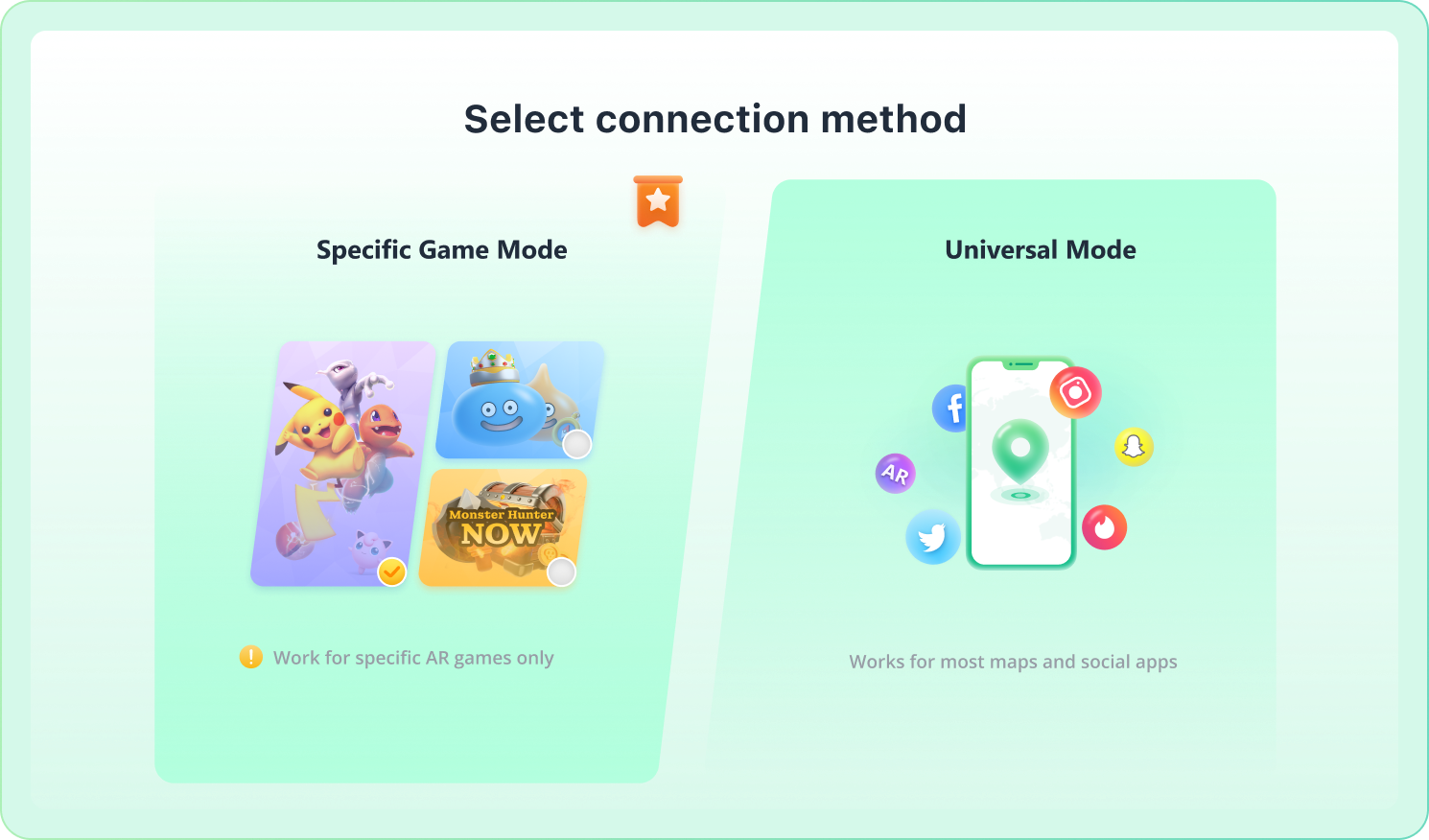
Step 3
Choose a walking, cycling, or driving speed. Drag the joystick to turn, or use auto-walk and pause whenever you need.
See Next Step →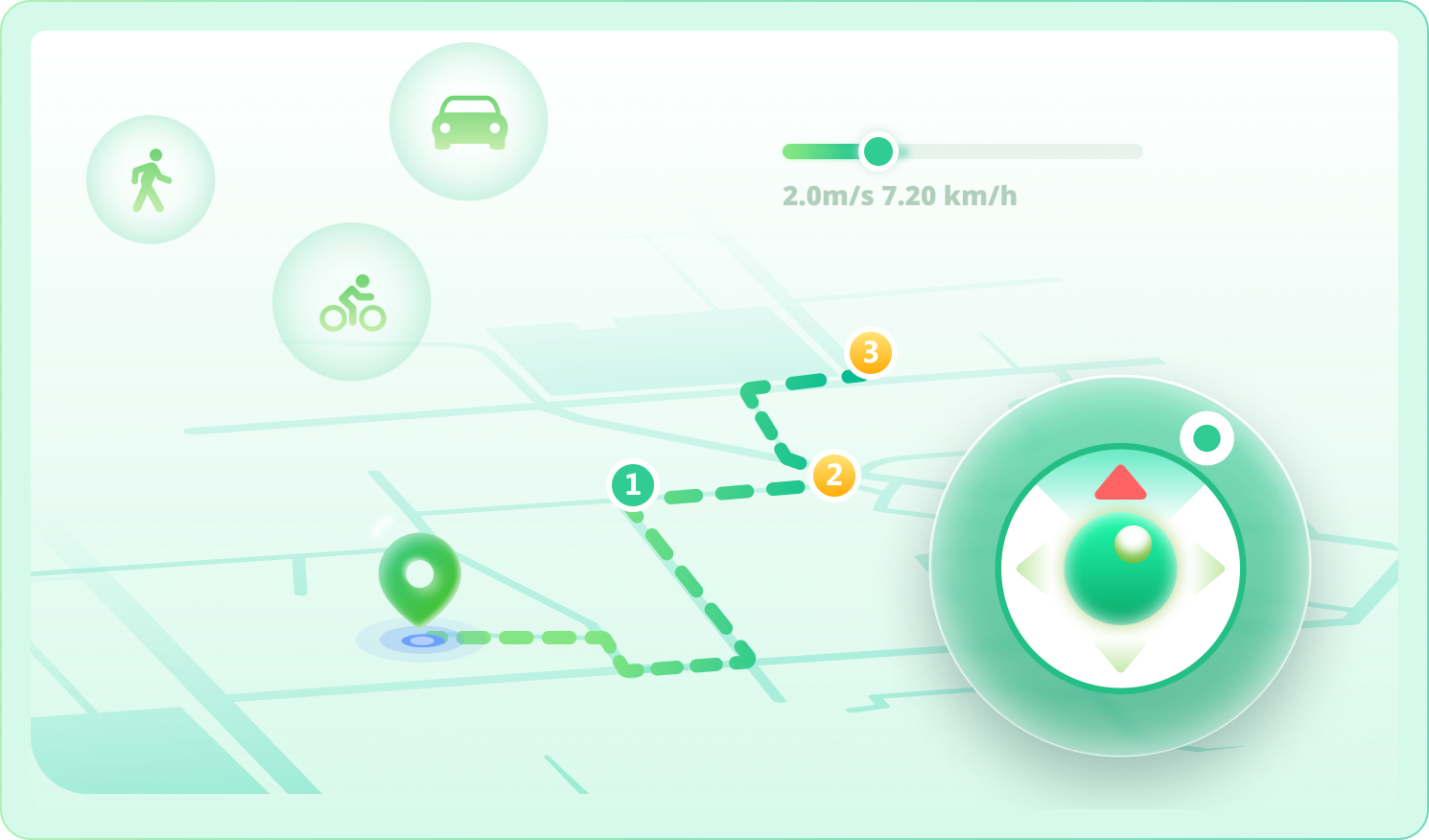
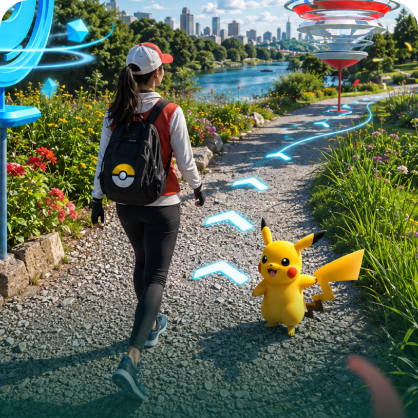
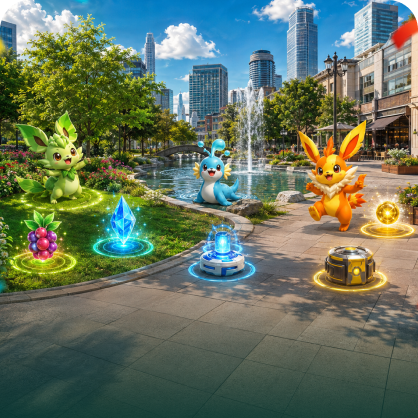
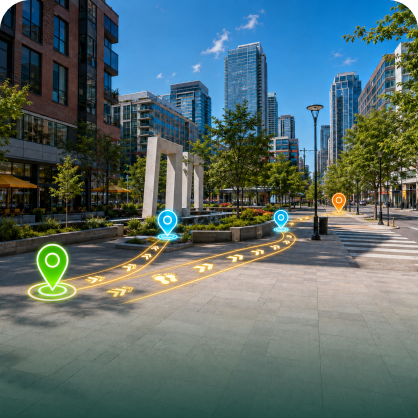
Use the joystick, location changer, route planner, and cooldown timer together for smoother play across location-based games.
 Switch Game Modes in One Place
Save Favorite Places and Routes
Match Your Speed to Each Game
Switch Game Modes in One Place
Save Favorite Places and Routes
Match Your Speed to Each Game
A virtual joystick can also help you test apps, preview local content, and protect your real location.

Control your direction and speed in Pokémon GO, MH Now, and other AR games.
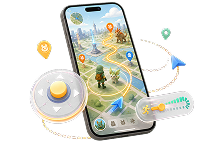

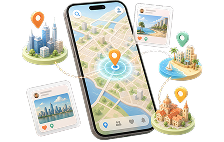
Preview local posts and check-ins as if your phone were in another city.
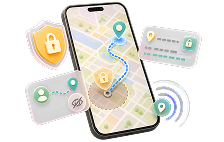

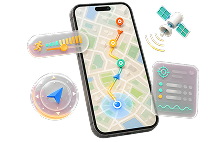
Test how a map app responds to different GPS directions and speeds.

Try location-sharing features without showing your real position in a demo.
Short movement at a normal walking speed usually does not create the same travel time as a long jump. Still, actions such as catching Pokémon, spinning PokéStops, battling at Gyms, or joining Raids can be affected. Check where and when you last played before you move.
For walking, start at about 3.6–6 km/h. If you move too fast, the game may not count your distance, your character may move oddly, or nearby places may not load.
This is called rubberbanding. It can happen when your phone reads real GPS, Wi-Fi location, and virtual GPS data at the same time. Stop playing, check the connection and location permissions, and wait until the map stays in one place.
First, see if your position moves on the LocaChange map. Then check the phone connection and location permissions. If Pokémon GO still shows the old spot, reopen the game or restart the virtual location.
Stop the virtual location in LocaChange first. Your real position may take a moment to return. If it does not, restart your phone and make sure Location Services is turned on.
Download LocaChange to control your direction, choose a speed, and follow your own virtual route.
Supports the Latest iOS and Android Versions | Please follow all applicable app terms of service.