
 Most Popular
 What's New


Keep Personal Stops Private
Keep errands, appointments, and personal visits from becoming details everyone can follow.
 Explore Tools
 Guide
Guide
 Reviews
LocaChange / Use Cases / Spoof Life360
✣ LocaChange Use Cases
Choose the GPS location you share with your Circle. LocaChange helps you change location on Life360, stay at a selected spot, or simulate a route—without jailbreaking or rooting your phone.
 Anywhere, Anytime
Protect Privacy
Keep Existing Circle
Restore Easily
Anywhere, Anytime
Protect Privacy
Keep Existing Circle
Restore Easily
 Windows
 macOS
macOS
 iPhone & iPad
 Android
3.6 km/h


Encounter #025

 Taipei 101

 Daan Forest Park
Los Angeles
Paris
No Jailbreak/Root iPhone & Android W/O PC No Notification Free Trial AvailableYour Circle map can reveal errands, appointments, and plans you would rather keep to yourself. LocaChange gives you more choice over the location you share, so personal time can feel more personal.
Keep errands, appointments, and personal visits from becoming details everyone can follow.

Take a break from questions about your whereabouts and focus on what you are doing.

Plan a gift pickup or a surprise visit without your shared location giving it away.
Set a new position, keep it in one place, or simulate movement with controls you can adjust.
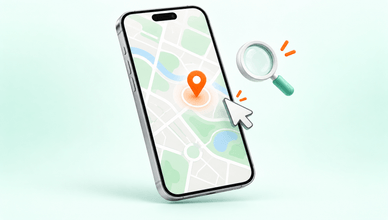
Search an address or enter coordinates. Use Teleport Mode to apply the location you want to share.
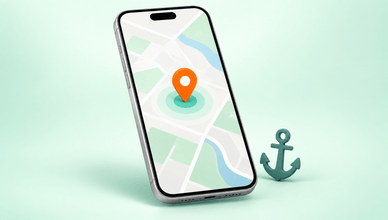
Set a fixed virtual position on your phone. Open Life360 and check whether your Circle map has refreshed to that spot.
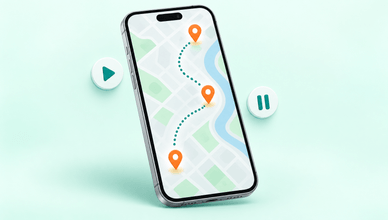
Set two or more stops and choose a speed. Start, pause, or stop the route from LocaChange.
Use the desktop setup below to change your phone’s GPS location, then check the result in Life360 before you continue.
 Step 1
Install LocaChange on Windows or Mac and connect your iPhone or Android phone by USB. Unlock your phone and follow the on-screen connection prompts for your device.
See Next Step →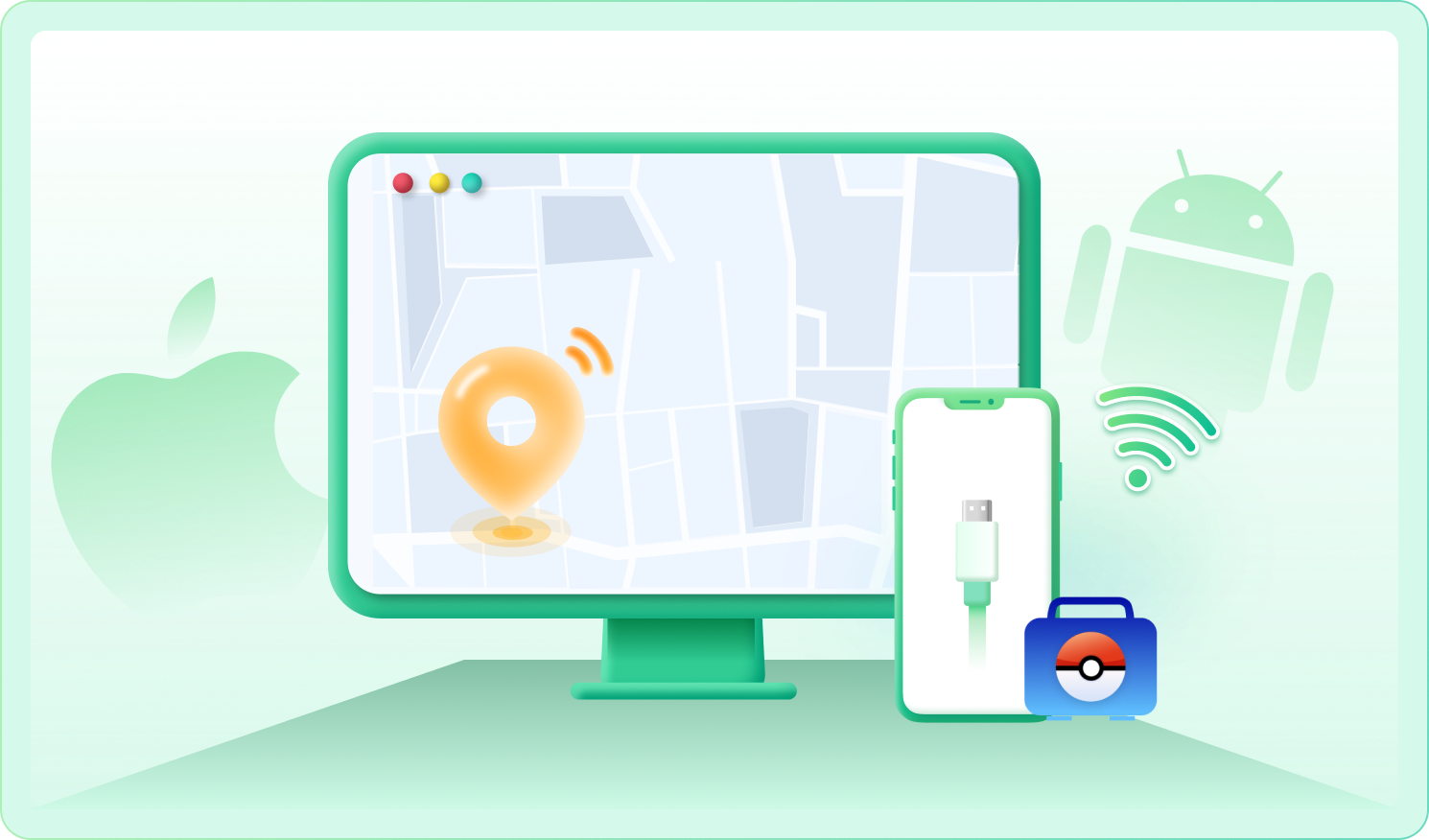
Step 2
Open Universal Mode, choose Teleport Mode, and search for the place you want to show. Check the selected point before continuing.
See Next Step →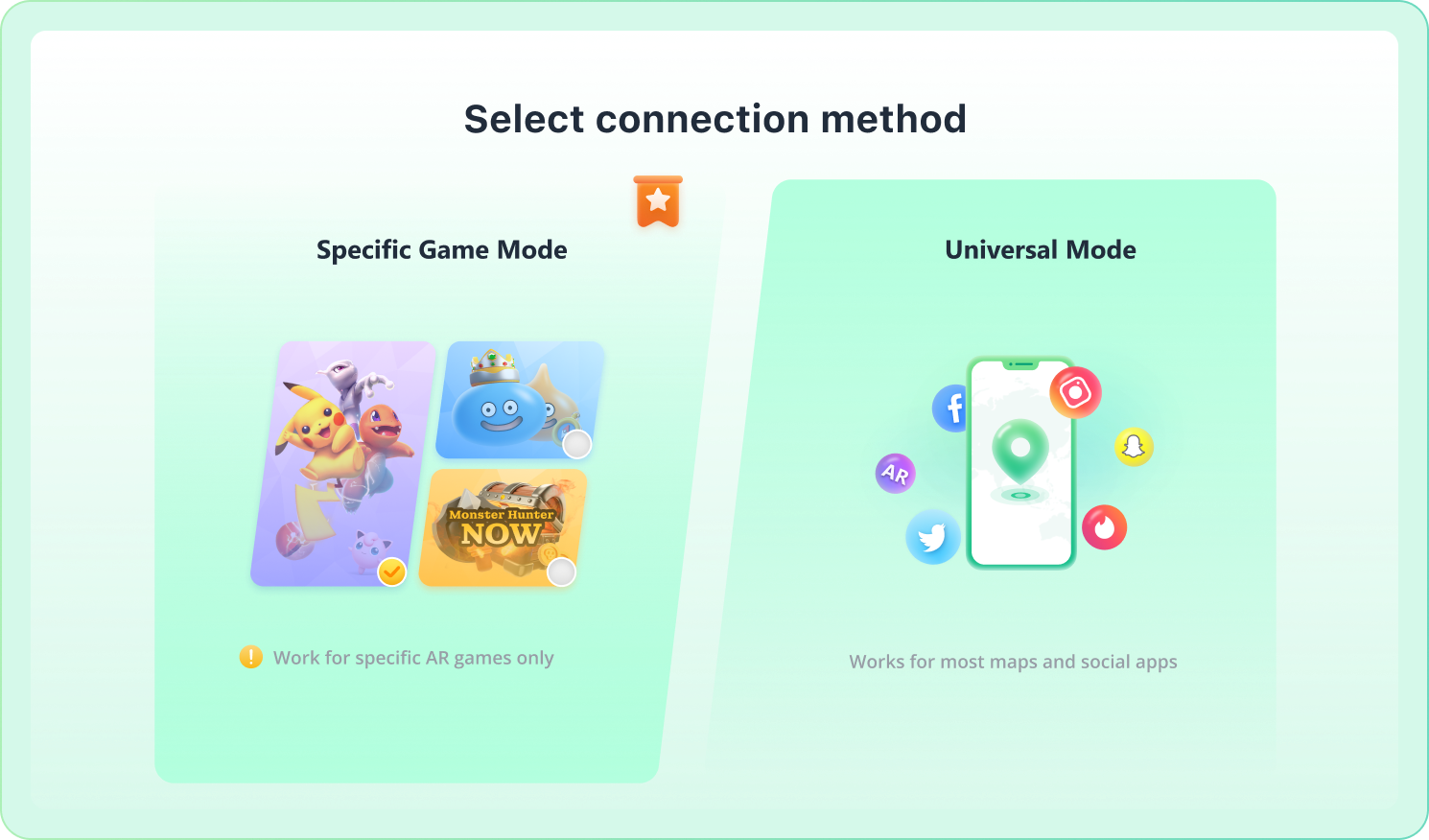
Step 3
Click Move to apply your selected position. Open Life360 with internet access and location sharing enabled, then check the map and update time. Ask a trusted Circle member to confirm what they see.
Review the Steps →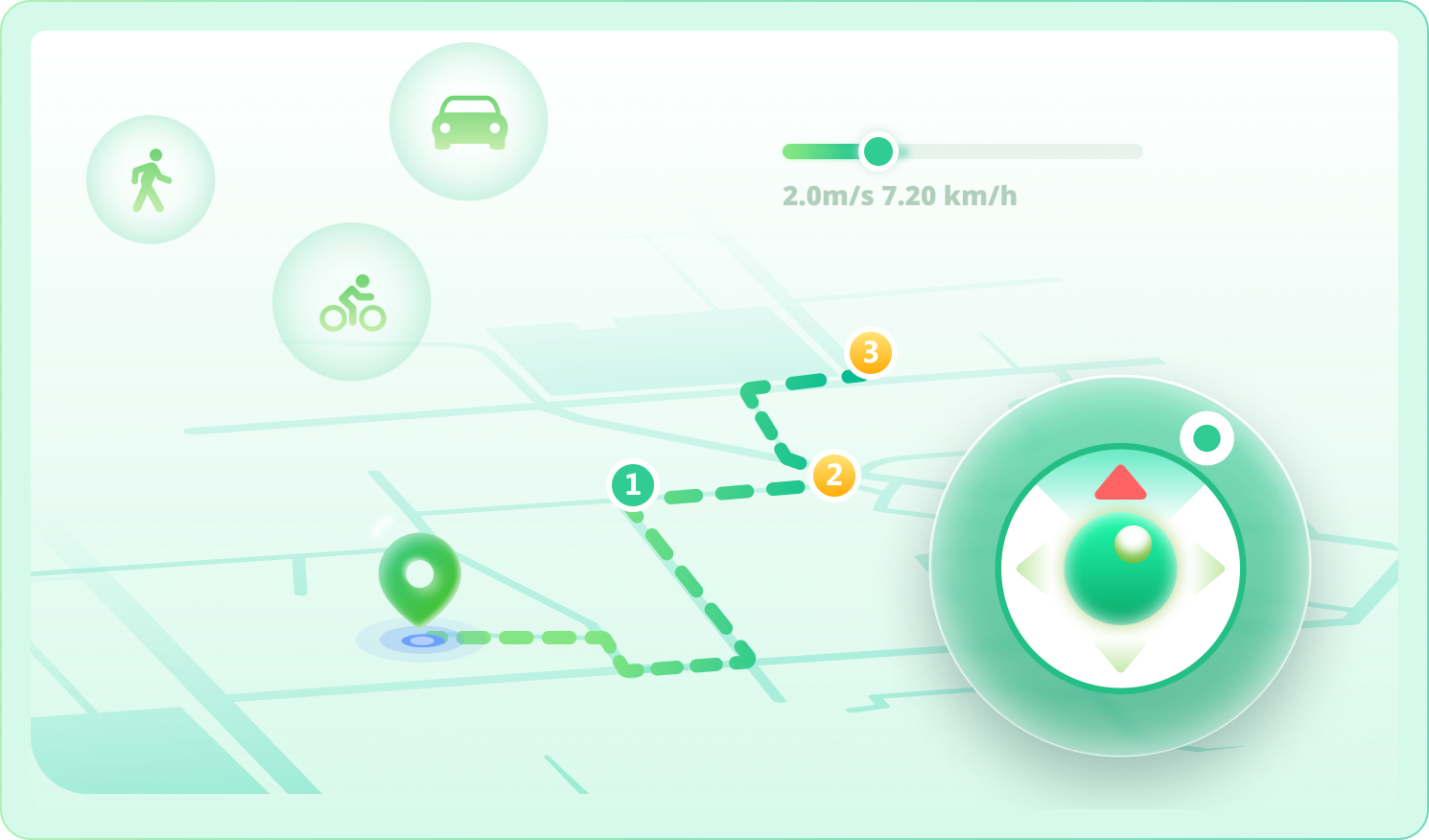
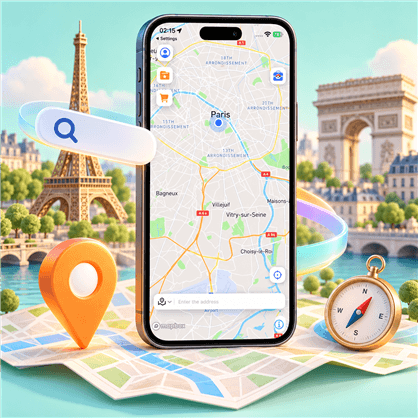
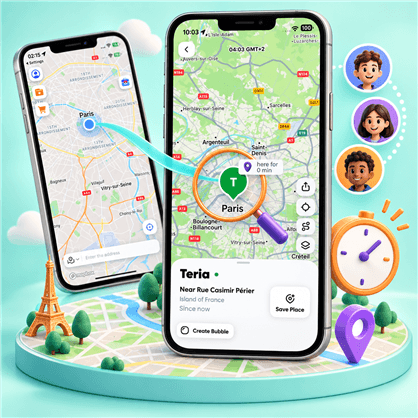
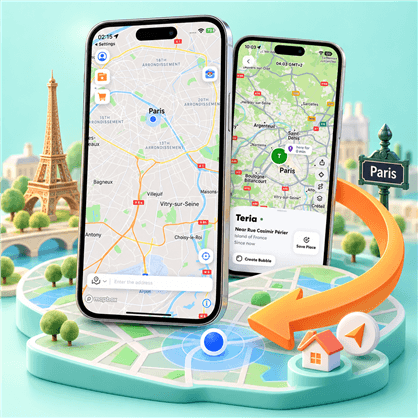
Choose a spot in LocaChange, open Life360, and compare the map with a trusted Circle member. Check the location timestamp as well as the pin. Review arrival and departure Place Alerts before changing location.
 Compare the Pin and Update Time
Review Your Place Alerts
No Jailbreak or Root
Compare the Pin and Update Time
Review Your Place Alerts
No Jailbreak or Root
Use a setup you can follow, check the result, and return to your real location when you are done.

Change GPS location on iPhone or Android without jailbreaking or rooting.

Keep your Life360 account and Circle while checking your location.

Set the location on your own phone without leaving a spare device elsewhere.

Start with the free trial and check the result on your device.

LocaChange can change the GPS position on a supported iPhone or Android phone. Use Universal Mode for Life360, select a place, and apply it. Then check the Life360 map and update time; phone permissions, connectivity, and app behavior affect what your Circle sees.
With LocaChange, you can keep your virtual location fixed instead of simulating movement. If Life360 continues to report that spot without crossing a saved Place boundary, it should not trigger new arrival or departure alerts. However, switching to that location or restoring your real position may trigger an alert.
LocaChange offers a free trial with usage limits. Try the setup on your device and check the location shown in Life360 before choosing a plan.
Check your internet connection, Life360 location permissions, and Circle sharing settings. Confirm that LocaChange is connected and has applied the location, then reopen Life360 and check the timestamp. On iPhone, allow Always and Precise Location; on Android, allow location access all the time and precise location.
Use LocaChange’s location recovery option, then reopen Life360 and confirm your real position and a recent update time. If the virtual position remains, restart your phone with location services enabled. Check other GPS-based apps too before using navigation or location-dependent services.
Compare location-changing options and learn what to check before choosing a method.
Check the permissions, connection, and sharing settings that can delay location updates.
Explore ways to pause location sharing and understand what your Circle may see.
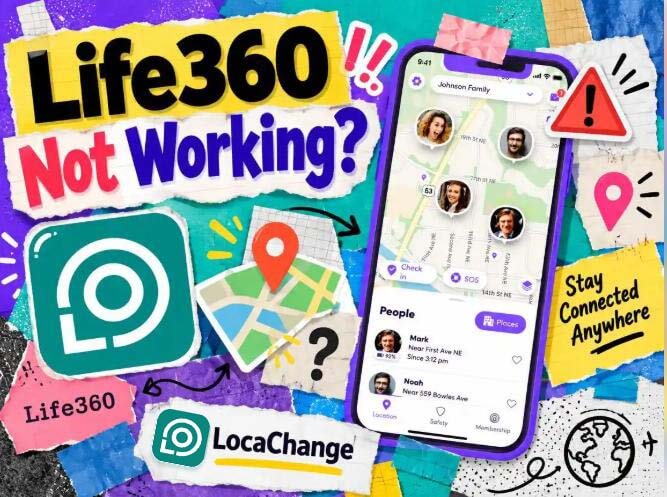
Troubleshoot location errors and get Life360 working again with practical fixes.
Choose a location, follow the guided setup, and check the result with your Circle. Try LocaChange on your iPhone or Android phone before choosing the plan that fits your needs.
For your own iPhone or Android phone. Windows or Mac required for the steps above. Free trial limits apply.