 Use Cases
 Catch Pokémon
 Pokemon GO Tools

 Most Popular
 What's New


Keep Personal Stops Private
Keep errands, appointments, and personal visits from becoming details everyone can follow.
 Explore Tools
 Guide
Guide
 Reviews
LocaChange / Use Cases / Spoof Find My
✣ LocaChange Use Cases
Choose the location your contacts see in Find My. LocaChange lets you spoof Find My location, keep sharing on, and switch to a place you choose—without jailbreaking and notification.
 Choose Any Location
No Notification
W/O Computer
Tested with Find My
Choose Any Location
No Notification
W/O Computer
Tested with Find My
 Windows
 macOS
macOS
 iPhone & iPad
 Android for Other Apps
3.6 km/h


Encounter #025

 Taipei 101

 Daan Forest Park
Los Angelas
Paris
No Jailbreak Works with Find My Windows & Mac Restore Your Location Free Trial AvailableA shared pin can reveal more of your day than you want to share. LocaChange helps you keep personal plans private and spend less time explaining where you are.
Keep errands, appointments, and personal visits from becoming details everyone can follow.

Take a break from questions about your whereabouts and focus on what you are doing.

Plan a gift pickup or a surprise visit without your shared location giving it away.
Set a new position, keep it in one place, or simulate movement with controls you can adjust.
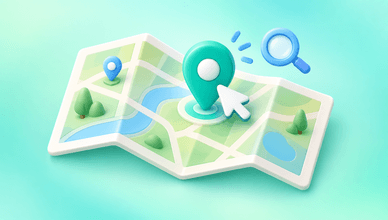
Search an address or enter coordinates. Use Teleport Mode to apply the location you want to share.
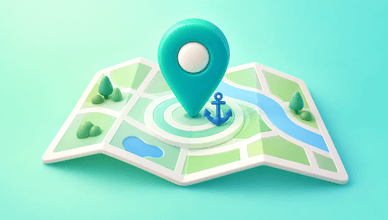
Keep a fixed virtual position instead of following a route. Check Find My to confirm the shared pin has updated.
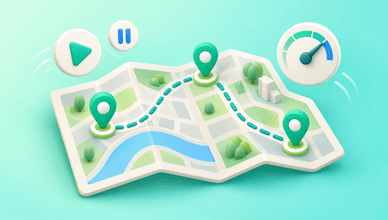
Set two or more stops and choose a speed. Start, pause, or stop the route from LocaChange.
Follow these three steps to set up LocaChange, choose the location you want to share, and check the result in Find My.
 Step 1
Install LocaChange on your computer and connect your iPhone by USB. Unlock it, tap Trust if prompted, and follow the setup instructions.
See Next Step →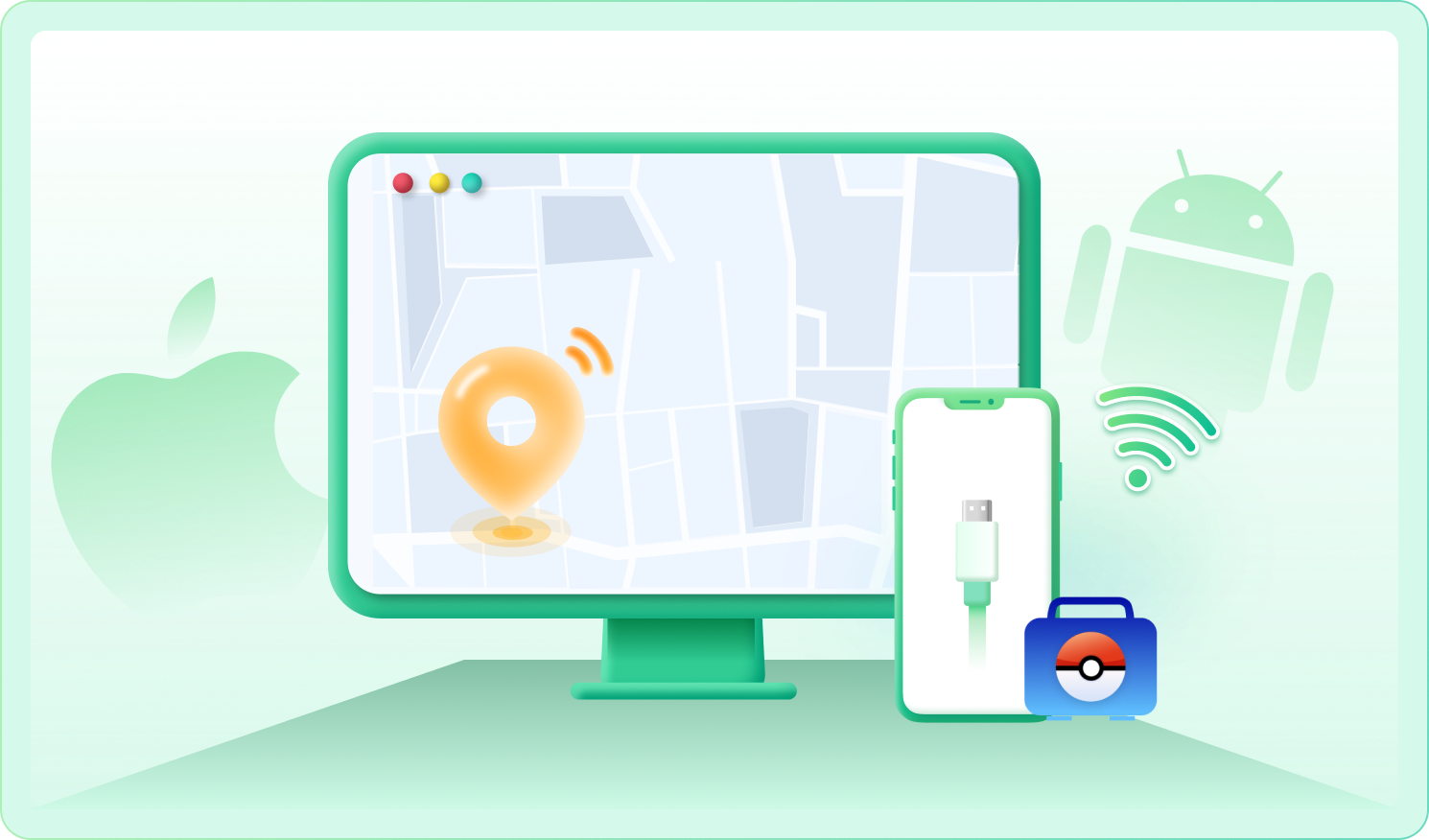
Step 2
Open Universal Mode, choose Teleport Mode, and search for the place you want to show. Check the selected point before continuing.
See Next Step →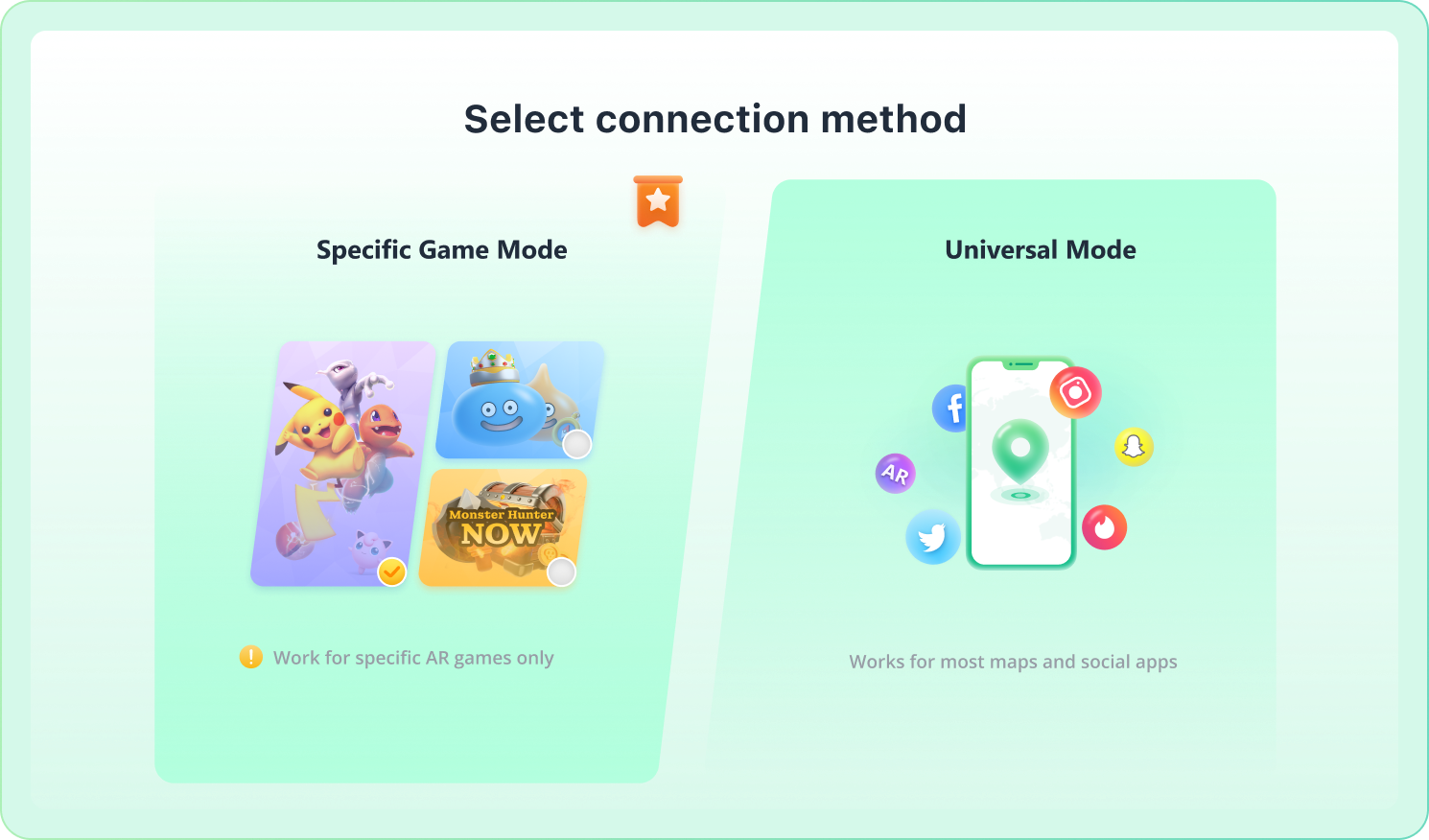
Step 3
Click Move. In Find My > Me, check that this iPhone is sharing your location. If needed, tap Use This iPhone as My Location, then check the shared result with a trusted contact.
Review the Steps →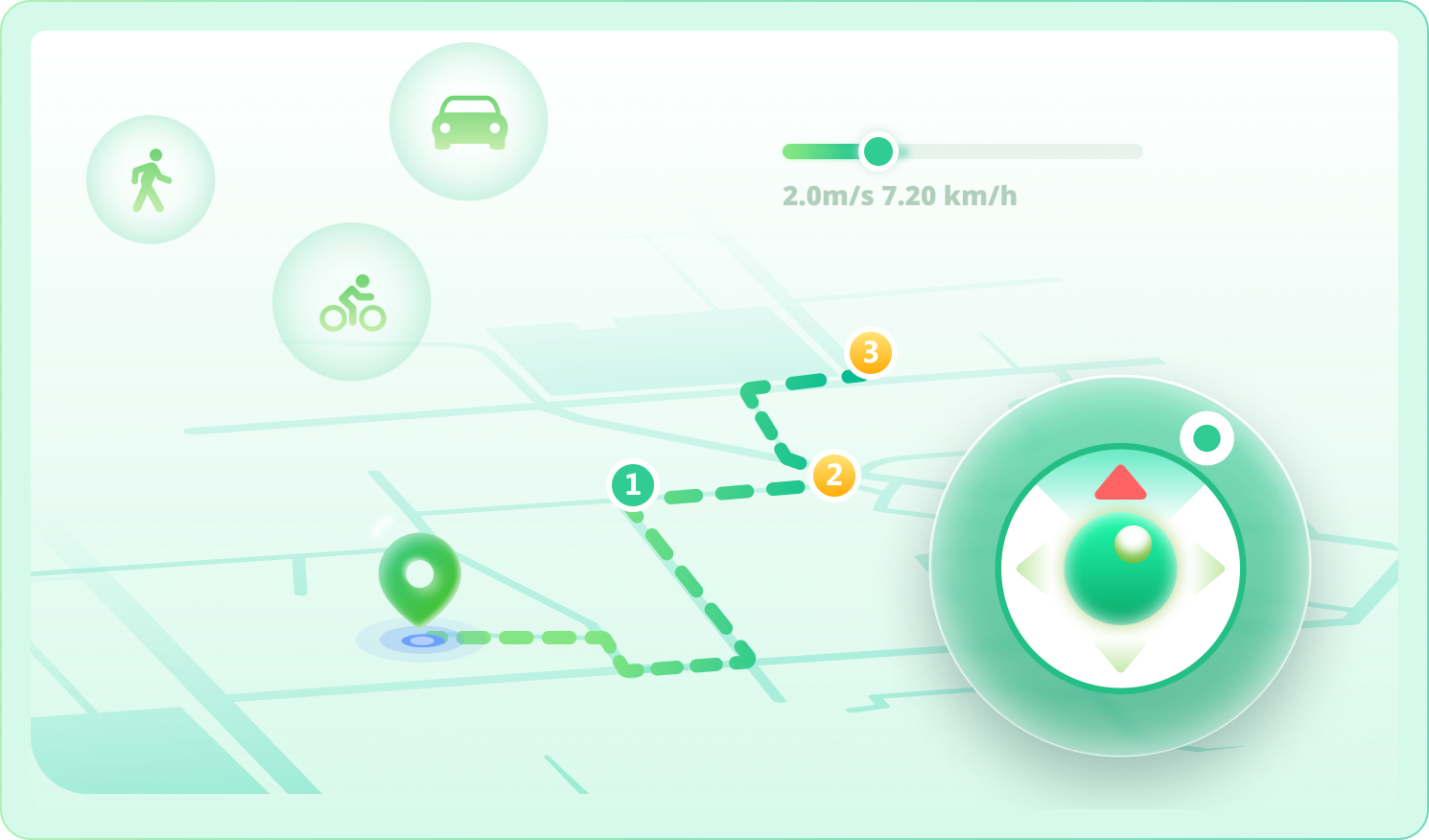
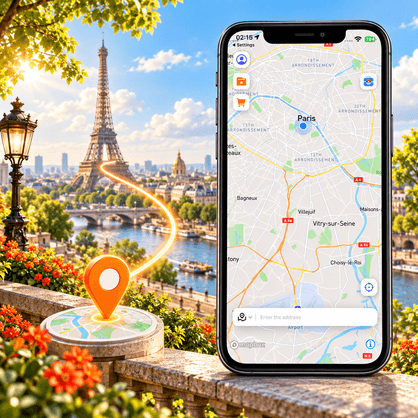
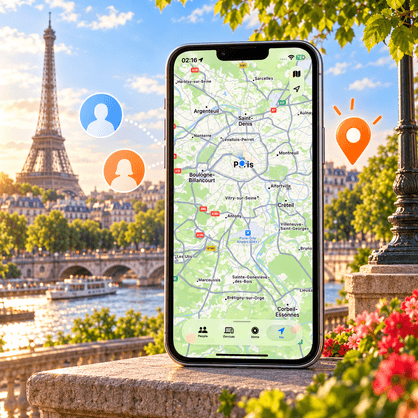
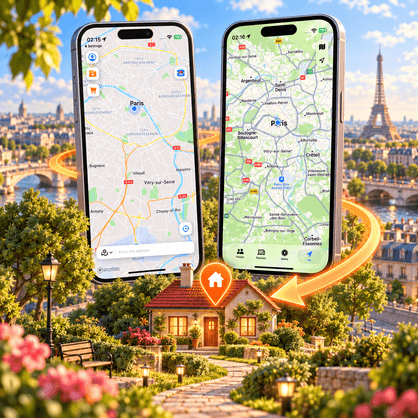
In our Find My tests, contacts saw the selected location without a spoofing alert or a visible sign that LocaChange was in use. Try it with your own iPhone and a trusted contact to check the shared result.
 Tested in Find My Location Sharing
No Spoofing Alert in Our Tests
No Jailbreak Required
Tested in Find My Location Sharing
No Spoofing Alert in Our Tests
No Jailbreak Required
Use a setup you can follow, check the result, and return to your real location when you are done.

Set a virtual location without jailbreaking your iPhone.

Leave Share My Location on and keep your existing contacts.
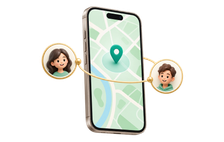

Change GPS location on your main phone.
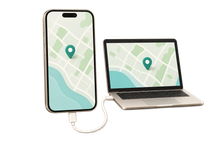

Start with the free trial and check the result on your device.
In our tests, contacts saw the selected location without a spoofing alert or a visible sign of LocaChange. Arrival and departure notifications are separate Find My settings. Review Notifications About You in Find My > Me before changing location. A map position alone cannot guarantee that someone will never notice a change.
Find My Friends is now part of Find My. Use the iPhone that shares your location, connect it to LocaChange, choose Universal Mode and Teleport Mode, then apply your selected spot. Check the shared location with a trusted contact.
LocaChange offers a free trial with usage limits. Use it to check the setup and location change on your iPhone before choosing a plan. The trial does not include unlimited use of every feature.
Check your internet connection and Location Services. In Find My > Me, confirm which device is sharing your location. Then check the LocaChange connection and reopen Find My. If you still see the old position, follow our Find My troubleshooting guide.
Use LocaChange's location recovery option and check Find My again. If the selected spot remains, restart your iPhone with Location Services enabled. Other GPS-based apps may also use the changed position, so confirm that your real location has returned before using them.
Choose the place you want to share and try LocaChange on your iPhone. Follow the setup steps, check the result, and see which plan fits your needs.
For Find My location sharing on iPhone. Windows or Mac required for the steps above. Free trial limits apply.