Change GPS Location on iPhone
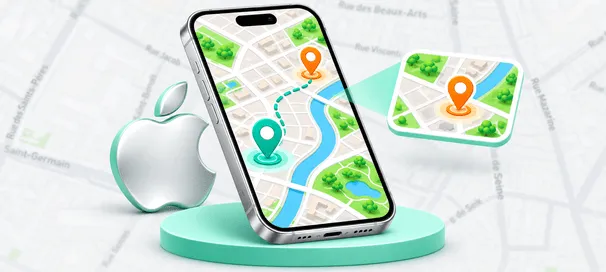
Set a virtual position on your iPhone without jailbreaking. Choose the iOS app or connect to LocaChange on Windows or Mac.
 User Guides
 Reviews
LocaChange / Use Cases / Change GPS Location
✣ LocaChange Use Cases
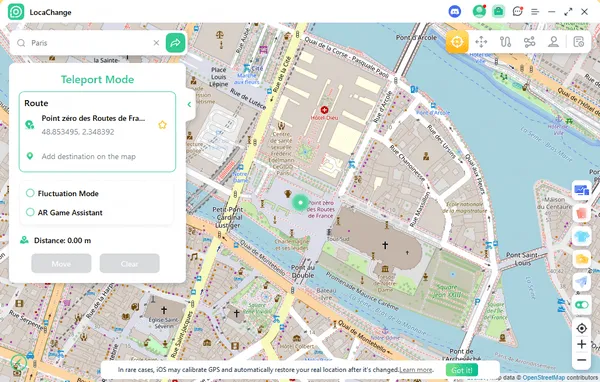
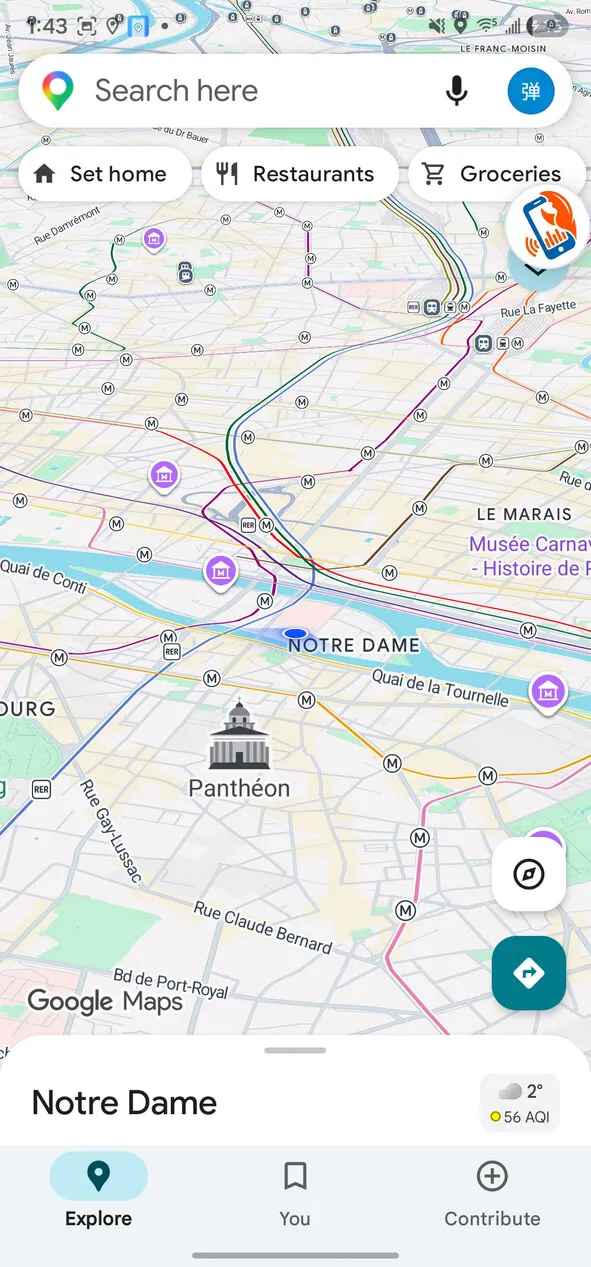
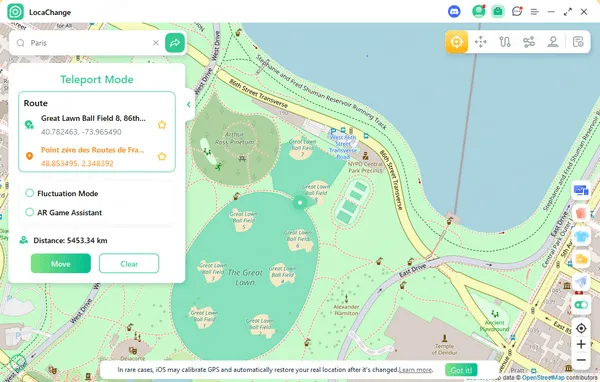
The Teleport Mode in LocaChange lets you change GPS location on iPhone or Android in one click. Find your destination by address, coordinates, or directly on the map.
 One-Click Teleport
Worldwide Destinations
Address & Coordinate
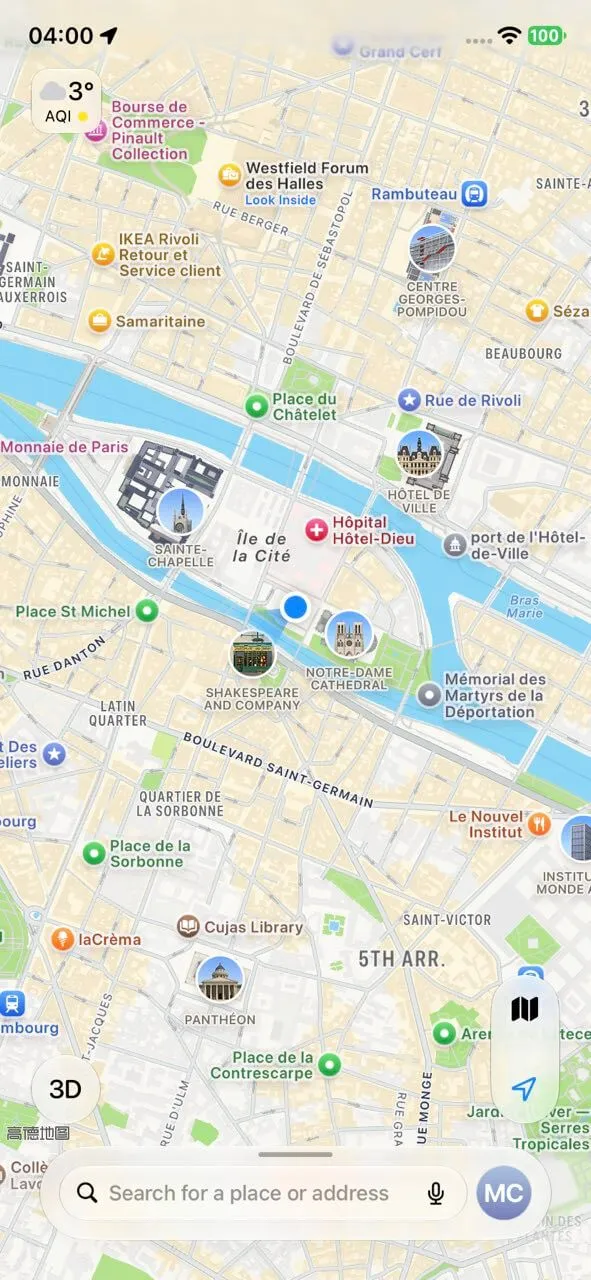
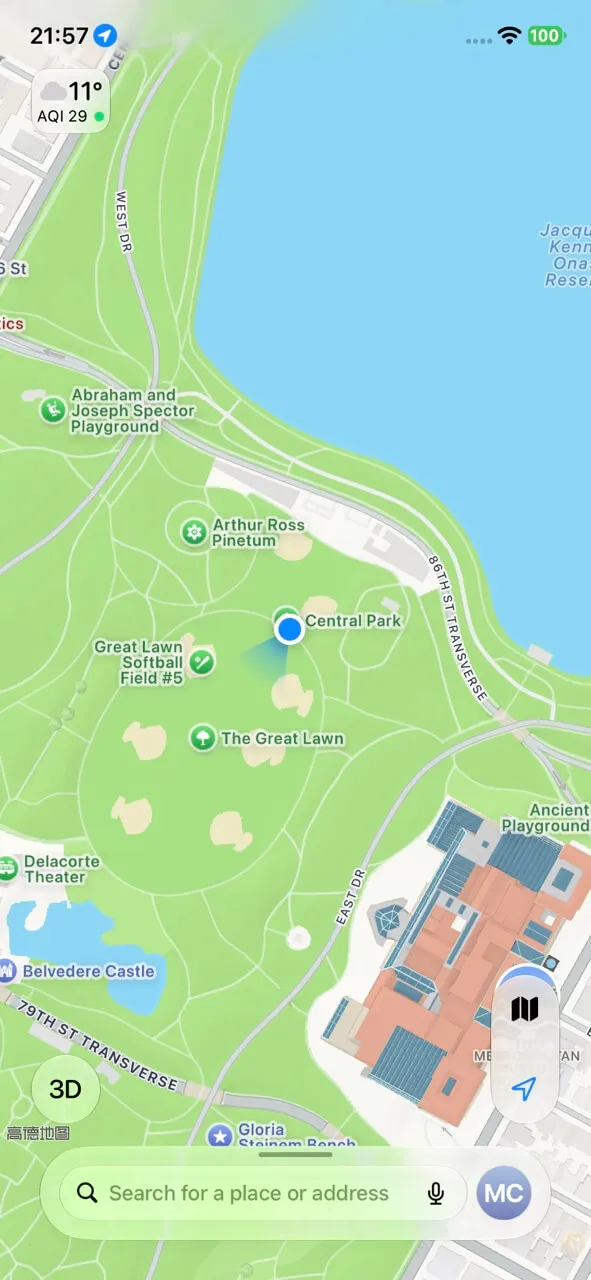
Location Stays Across Apps
 Windows
 macOS
 iOS
 Android
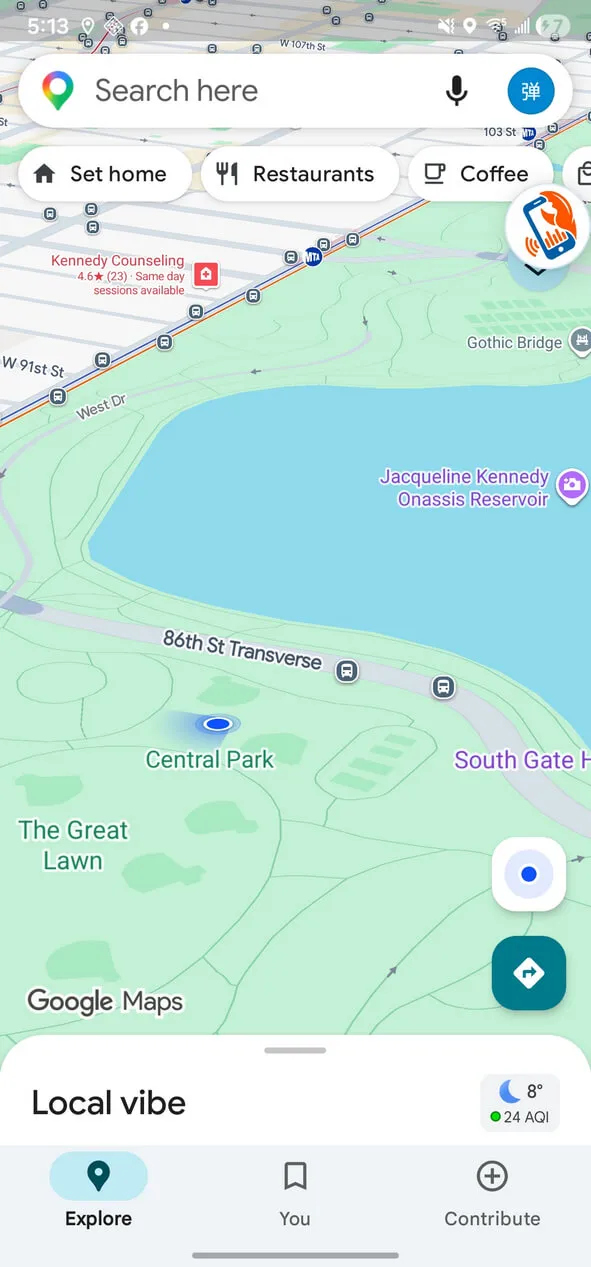
LocaChange offers mobile apps and desktop software, so you can choose the setup that fits your device.
Set a virtual position on your iPhone without jailbreaking. Choose the iOS app or connect to LocaChange on Windows or Mac.
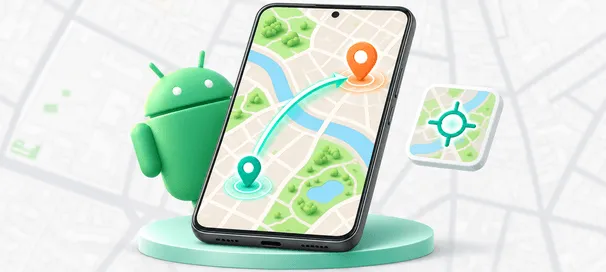
Choose another map position on Android without rooting. Use the Android app or manage the destination from your computer.
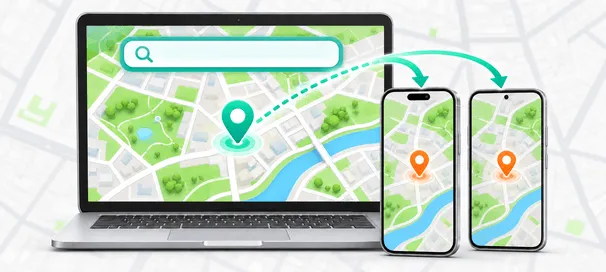
Search destinations and review coordinates on your desktop while changing the GPS position of your connected phone.
Choose a destination and switch your GPS location directly with Teleport—without simulating a journey along a route.
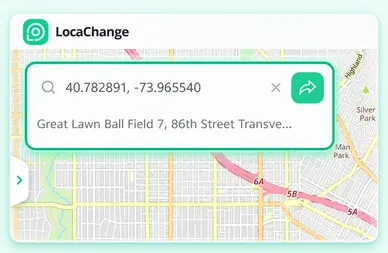
Search a place name or paste latitude and longitude to find the destination you want.
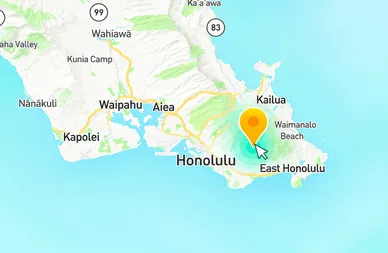
Click directly on the map to choose your destination, even when you do not have an address or coordinates.
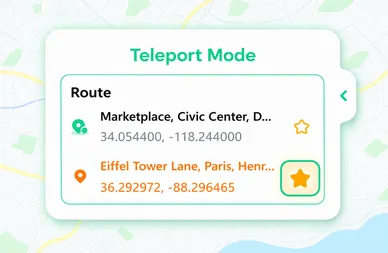
Save destinations or reopen recent locations without entering the address again.
Use a selected map position for play, discovery, testing, or location sharing.

Explore new places to play without walking.
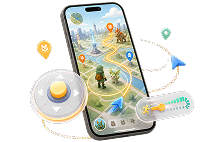

Browse local posts and profiles in another city.
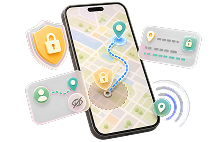

Check map pins and nearby results at any coordinates.
No. LocaChange changes GPS location on iPhone and Android without jailbreak or root. Follow the setup guide for your device to connect and enable the required permissions.
LocaChange offers iOS and Android apps for changing location from your phone. The iOS app requires a computer for initial installation; see the iOS guide for your setup.
Yes. LocaChange offers a free trial with usage limits. Try it on your device before choosing a plan, or compare plans for continued use.
Use Universal Mode for Apple Maps, Google Maps, Find My, and Life360. Switch to Specific Game Mode for Pokémon GO, Monster Hunter Now, and Soundmap. Check the user guide for the mode and connection your app requires.
Yes. Save frequently used destinations in Favorites or reopen previously searched addresses in History to select them again.
In the Android app, open the side menu and tap Reset Real Location. In the iOS app, enable manual location restoration in Personal Center > Settings, then tap the restore button on the home screen. You can also restart your phone to restore its real location.
Choose your next destination with LocaChange Teleport. Search, preview, and change your phone’s position in one click.
Available for iOS, Android, Windows, and Mac.