


 Most Popular
 What's New
How to Fix Pokemon GO GPS Signal Not Found 11 (Android & iOS)
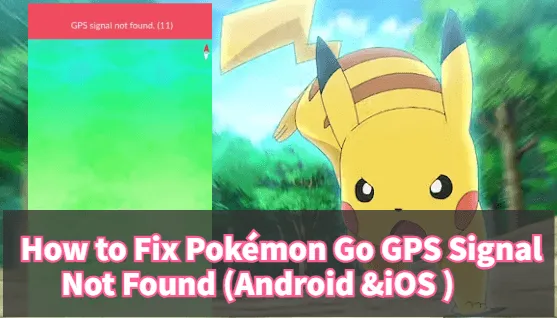
We know that GPS is very important for players in Pokemon Go because you can use GPS to get rare candies and rare items like the Pokemon GO Sun Stone, so it is a very painful problem for players when Pokemon Go cannot find the GPS signal. In the article below, we will guide you to check Pokemon Go GPS signal not found on iOS and Android and provide detailed steps on how to fix it.
Why GPS Signal Not Found in Pokemon Go?
We have listed the following reasons for not finding the GPS signal in Pokemon GO:
Location Settings: Check in System Settings to see if your device's GPS is turned on for Pokemon GO. A weak signal may cause hiccups.
Signal Interference: Tall buildings or crowded areas may affect GPS accuracy. Head to an open area to get a clearer signal.
App Permissions: Make sure Pokemon GO has location access permissions. Check the permissions set by the application.
Cache and Data: If problems occur, clear the app cache or reinstall. Sometimes old data can cause GPS problems.
Software Bugs: Keep the app updated to avoid bugs with older versions of Pokemon that cause GPS problems.
Internet Connection and GPS: Make sure you are online and your device's GPS is turned on. Plus no internet means no Pokemon hunting!
Location spoofing: The inappropriate usage of Pokesniper or spoofer may lead to Pokemon GO signal problem. If you are using the tools, you should follow coom down rules.
How to Fix Pokemon GO GPS Signal Not Found 11?
Pokemon GO is loved by iPhone and Android users. Here are friendly steps to fix the "GPS signal not found" issue specifically for Android and iOS devices, ensuring everyone can enjoy the game with ease!
1 Pokemon Go GPS Signal Not Found on Android
Disable Simulated Location Functionality
Android has a feature called Mock Locations that might cause GPS issues in Pokemon Go. Here's how to fix it:
- Go to 'Settings,' then 'About phone.'
- Tap 'Build number' 7 times to become a developer.
- Back in 'Settings,' find 'Developer options.'
- Look for 'Allow mock locations' and switch it off. That should do the trick!"

Grant Location Access
To make sure Pokemon GO works perfectly:
- Open Pokemon GO settings.
- Tap 'Location.'
- Set 'Allow Location Access' to 'While Using the App.'
- Turn on 'Precise Location.' That's it for seamless gaming!"

Set GPS to High Accuracy
- Open settings.
- Look for 'Improve Location Accuracy.'
- Turn it on! This helps your device use more info for accurate locations.

Turn Airplane Mode on and off
Swipe down from the top to find airplane mode, click to turn it on, and then turn it off

Check Wi-Fi Settings
Generally, if your Pokemon GO WiFi network signal is not in good condition, it will also affect the location of your Pokemon.

Reboot the Device
Generally, if your WiFi network signal is not in good condition, it will also affect the location of your Pokemon.

2 GPS Signal Not Found in Pokemon GO on iOS
Reinstall the Pokemon Go App
If Pokemon Go's acting up, it might just need a fresh start! Try uninstalling it, restart your phone, then hop back to the Play Store to reinstall. That could do the trick for the GPS bug!

Restart Your Device
If nothing's fixing the Pokemon Go GPS issue, give your iPhone a restart.
- Hold the side button till you see a slider.
- Slide it to turn off. Wait 30 secs.
- Hold the side button till you spot the Apple logo. Your iPhone's back in action!

Check Location Services
- Swipe to open Control Center, tap the GPS icon to turn it on.
- Or head to 'Settings' > 'Privacy' > 'Location Services' to toggle it on. That should do it for your location settings!"

Reset Network Settings
If Pokemon Go's still giving GPS trouble on your iPhone, try resetting network settings:
- Swipe to open Control Center, tap the GPS icon to turn it on.
- Or head to 'Settings' > 'Privacy' > 'Location Services' to toggle it on. That should do it for your location settings!"
The Latest Version
The game version of Pokemon must be updated in time, because some old versions may have loopholes, such as inaccurate GPS.

The Ultimate Solution - Pokemon GO GPS Signal Not Found
Having GPS issues with Pokemon Go? Try the location changer LocaChange (iOS and Android), which gives Pokemon GO players a convenient solution to enjoy the game no matter where they are. It allows users to raid and catch rare Pokemon from almost anywhere, plus, no jailbreak required! You can easily set your Pokemon Go location anytime, anywhere.
To make it easier for you to quickly change your location,here's how to use LocaChange specifically to easily spoof locations.
Step 1: Download and install LocaChange Pokemon GO spoofer into your Computer.

Step 2: After installing LocaChange, launch it. Then connect your phone to your computer with a USB cable or WIFI connection.

Step 3: Choose any of the teleport mode, two-spot mode, multi-spot mode, enter any location you want to jump or transfer, and click the Move button to change your GPS location.

Through the above steps, you can easily change your location, and fake GPS location is no longer your worry.
In addition, LocaChange also supports the following functions: support for planning routes, collecting information saved in the cloud, etc.
FAQs About Pokemon GO GPS Signal Not Found 11
1. Why is My Pokemon GO Signal Not Found 11?
Pokemon Go Signal Not Found 11 Usually indicates a problem with the GPS connection or device settings! So you can check your phone settings, update the Pokemon app, and consider interference.
2. Why is My Pokemon GO Signal Not Found 11 ?
Two Reasons:
1: Some fake GPS apps don’t work effectively in Pokemon GO due to the game’s advanced detection mechanism.
2: The fake location changer you chose is not reliable and cannot be used in Pokemon GO
Conclusion
All in all, encountering the ‘Pokemon Go GPS signal not found 11’ can be frustrating for players trying to enjoy this immersive game. To solve this problem, keeping the application updated and ensuring the appropriate permissions for location services are key. Additionally, third-party tools like LocaChange offer alternative solutions that do not require jailbreaking, providing flexibility in setting locations.


- Pokémon GO
- GPS Spoofing
- AR Gaming
- AR gaming and GPS spoofing specialist with over a decade of software experience. He is a trusted writer on Pokémon GO tips and safe location-changing strategies, helping over 2 million users worldwide. As an Apple enthusiast and expert in location-changing technology, he brings both technical depth and gaming insight to every guide.
 Related Articles
- [2025] Master the Game: Defeat the Pokémon GO Soft Ban Curse!
- [Fix] Pokemon GO Adventure Sync Not Working & Turning Off
- How to Fix Pokemon GO "Failed to Authenticate" Error?
- [Personally Verified] How to Fix Pokemon GO Routes Not Working?
- How to Fix "Failed to Detect Location 12" in Pokemon GO (2025)
- [Resolved] How to Fix “Pokemon GO Crashing” Issues?