
 Use Cases
 Catch Pokémon
 Pokemon GO Tools



 Most Popular
 What's New
[2026] How to Pause/Freeze Location on Find My iPhone?

Pause Location on Find My iPhone
1-click to pause location on Find My and completely hide your footprint without anyone knowing. Effectively protect your privacy with LocaChange.

In the iOS 13 update, Apple merged Find My iPhone and Find My Friends into a single app called Find My. This app not only helps you find lost devices, but also serves as a location-sharing tool.
Whether you want to avoid being tracked by family or friends, or simply need a break from sharing your real-time location, this article outlines four safe and effective ways to pause your location on Find My iPhone.
In this article:
Why You Need to Pause Your Location on Find My?
Whether it's to ensure family safety or address trust concerns, more people are turning to real-time location sharing to monitor each other's whereabouts. However, if you're facing challenges with this feature of Find My, learning how to pause or freeze your location can be essential.
When you pause your location, the other party will see a static location (even if you've moved elsewhere), making them believe you're still in that spot. Here are some key reasons why you might need to freeze your location on Find My iPhone:
- Avoid Unwanted Tracking: Temporarily stopping location sharing ensures no one can monitor your movements.
- Protect Personal Data: Continuous location tracking can reveal sensitive details about your daily routines and habits.
- Emergency or Temporary Privacy: There may be times when you need a break from being visible on the map, whether for security reasons or personal comfort.
Pause your location on Find My without anyone knowing with LocaChange.
Can You Pause Your Location on Find My iPhone?
Yes - but not through a built-in "Pause" button. Find My updates your location only when your iPhone can send fresh GPS and network data. Once those signals are blocked, limited, or replaced, the app can only show your last known location, which effectively makes your location appear paused or frozen.
That's why methods like Airplane Mode, turning off Location Services, switching to another Apple device, or using an iPhone location changer all work - they prevent Find My from receiving new location data or feed it a fixed one.
Below are four safe and reliable ways to freeze your Find My iPhone location.
[4 Safe Ways] How to Freeze Location on Find My iPhone?
Watch Video Tutorial to Pause Location Easily on Find My
Method 1 Use iPhone Location Changer - LocaChange
If you're unsure how to pause your location on Find My iPhone, you won't want to miss the powerful iPhone location changer - LocaChange. This tool works by faking GPS data, allowing you to teleport to any location or simulate a realistic route with natural movement and speed. This effectively hides your real location, pausing the location displayed on Find My.
After testing LocaChange for several weeks, I found it both practical and user-friendly. It offers various modes to discreetly turn off or change your location on iPhone without others noticing, catering to all my needs. Plus, it now provides a free trial version for users to experience.

 Key Features of LocaChange
- Simple steps to pause or fake location on Find My, allowing you to conceal your real whereabouts.
- 1 click to teleport to any place in the world and protect your privacy.
- Adjust your moving speed and customize a route to make your virtual footprint appear more realistic.
- User-friendly interface and mutiple modes satisfy your different needs.
- Compatible with iOS and Android, supports 10 devices at the same time.
- Support fake and pause location on popular apps like Life360, Snapchat, WhatsApp, Tinder, etc.
Here is how to use LocaChange to pause location on Find My:
Step 1 Download and install LocaChange on your iPhone.

Step 2 After installing LocaChange, launch it. Choose the Teleport Mode, select a location you want to freeze, then click Move, and now your real location information is paused here. No one would know your real location in Find My.


Want to master LocaChange better? Read this for details on how to take full advantage of it:
Method 2 Turn Off Location Services
Turning off Location Services is one of the simplest ways to freeze your location on Find My iPhone, because the app can no longer receive updated GPS or network data. Instead, it will show your last known location, which effectively pauses tracking.
Step 1 Go to Settings > Privacy & Secure > Location Services.
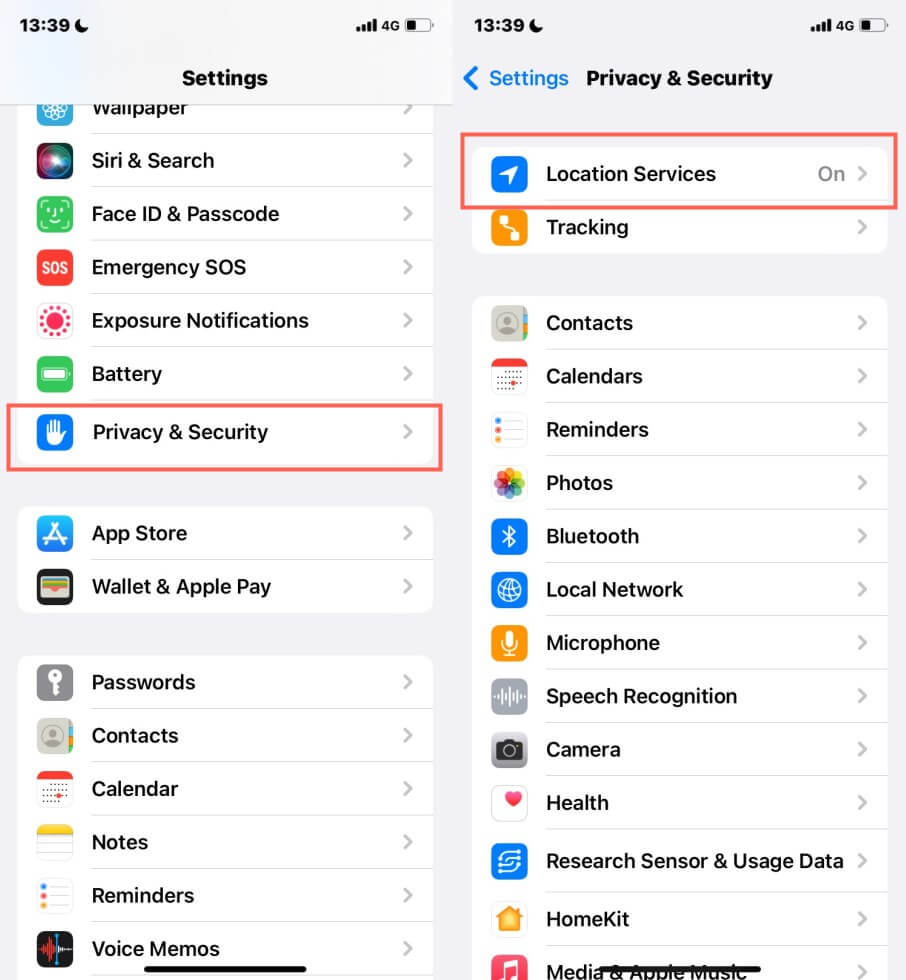
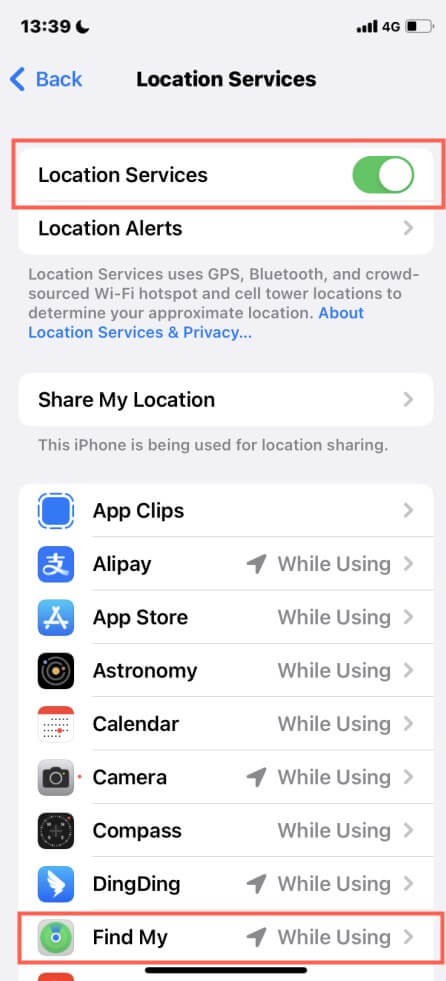
Step 2 You can choose to turn off whole Location Services by switching the upper button, or just turn off Find My in below.
Step 3 If you don't want to fully disable tracking, you can turn off Precise Location. This makes your location appear less accurate and slows updates, which can look similar to a "paused" location.
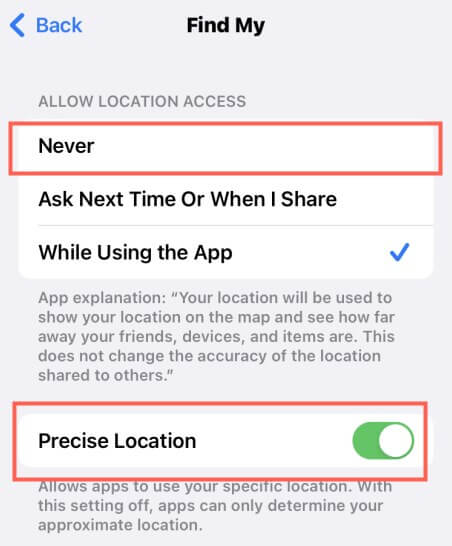
Turning off Location Services disables GPS for all apps. If you prefer pausing only Find My without affecting other apps, using a location changer like LocaChange is a safer and more flexible option.
Method 3 Use Another Apple Device
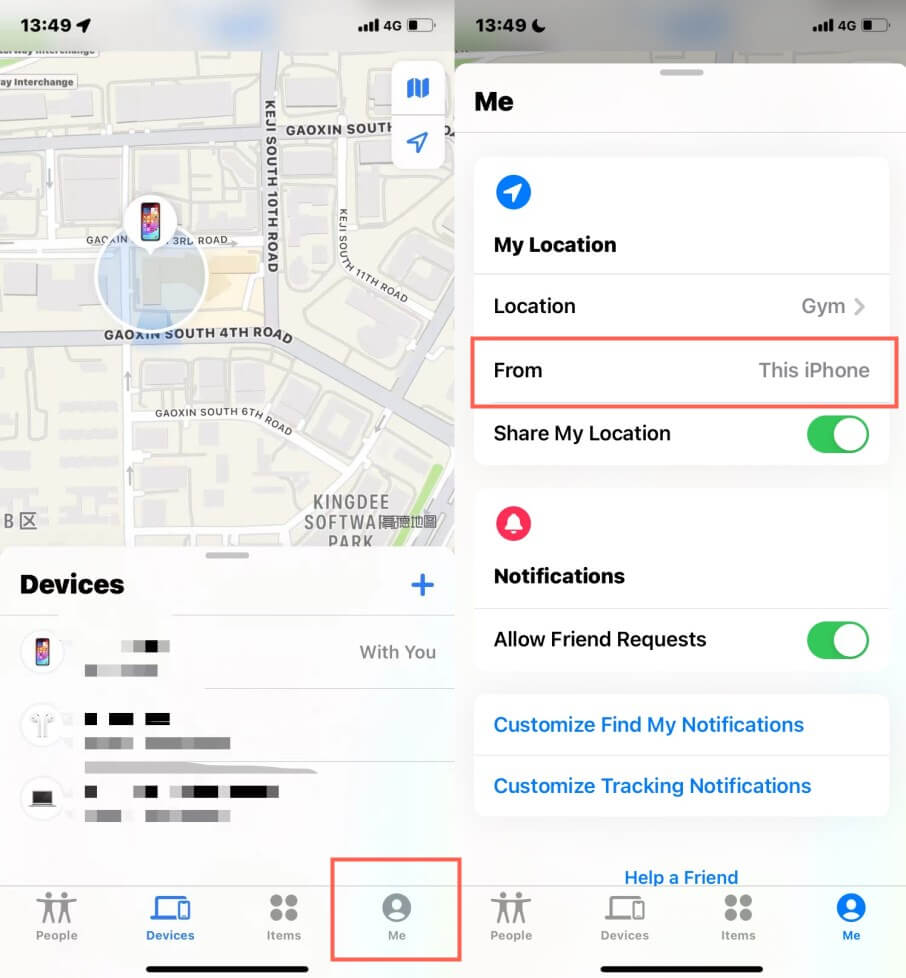
If you own multiple Apple devices, you can shift your Find My location to a different device. This effectively pauses the location on your main iPhone, because Find My will only update the device you select as your active location source.
This method works well when you want to use your iPhone privately while showing a frozen location from another Apple device.
Step 1 Log in to your Apple account to different devices at the same time.
Step 2 Open Find My app on the other device.
Step 3 Click the Me tab at the bottom of the screen.
Step 4 Select "Use This Device as My Location." Find My will now update based on this device, effectively freezing or pausing the location of your main iPhone.
Method 4 Use Airplane Mode
How to pause location on Find My iPhone? The last method is direct but workable. As we know, Airplane Mode can solve many iPhone problems related to privacy. So toggle Airplane Mode also helps to freeze location on Find My iPhone.
You can turn on Airplane Mode by swiping down to access Control Center and tap the Airplane Mode icon to enable it.
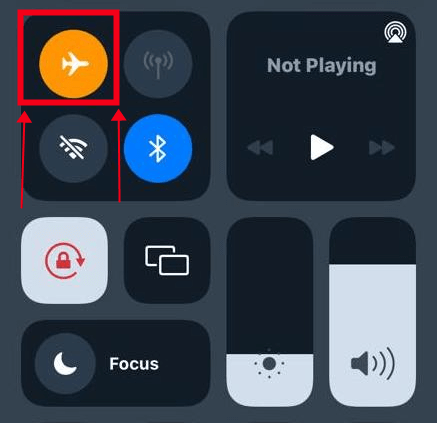
With Airplane Mode turned on, your iPhone stops sharing real-time location, making it a simple way to freeze your location on Find My iPhone. But keep in mind that this method also blocks calls and internet access, so use it only when you need a fast, temporary solution.
Why Does My Location Show as "Paused" on Find My iPhone?
If your location suddenly shows as "Paused" on Find My iPhone, it means your device has stopped sending real-time location updates. This is a common message when the iPhone cannot refresh your GPS or network connection. In most cases, a paused location on Find My does not mean there is an error - it simply means the phone is not actively sharing its position.

Here are the most common reasons your Find My location shows as paused:
1. Location Services Are Turned Off
If you disable Location Services completely or turn off Find My access, the system will display your location as paused because it no longer receives GPS data.
2. Low Power Mode Is Enabled
When Low Power Mode is active, background location updates may be restricted to conserve battery. This can cause your location to appear paused in Find My until your device is recharged or the mode is turned off.
3. No Network Connection
Find My requires an active Wi-Fi or cellular data connection to transmit your location. If your device goes offline due to poor signal, network issues, or intentional disconnection, it may display as "Location Paused."
4. Airplane Mode Is On
Enabling Airplane Mode turns off all wireless communications, including GPS and network services. This will immediately pause your location updates in Find My.
5. You Switched to Another Apple Device
If you start using another device signed into the same Apple ID for location sharing, your iPhone may show as paused because it is no longer the active device broadcasting your location.
6. Intentional Methods to Freeze Location
If you use tools like a location changer app (e.g., LocaChange), switch sharing devices, or disable precise location, Find My may show your location as paused because updates are being intentionally controlled or hidden.
FAQs About Pausing Location on Find My iPhone
1. Does Airplane Mode pause your location on Find My iPhone?
Yes. Turning on Airplane Mode disables cellular data, Wi-Fi, and GPS, which instantly pauses your location on Find My iPhone. Your friends will typically see "Location Not Available" or your last updated location.
2. How do I know if someone paused or stopped sharing their location?
If someone pauses their location, you may see:
- "Location Not Available"
- Their icon turns gray
- The last seen timestamp stops updating
- Their location doesn't refresh for hours
This usually means they turned off Location Services, used Airplane Mode, or used a location changer app to hide their location.
3. Can I freeze my location on Find My without others knowing?
Yes. Methods like LocaChange, using another Apple device, or disabling Precise Location allow you to pause location on Find My iPhone without triggering notifications. Others will simply see your last location.
4. Will Find My iPhone still work if Location Services are off?
Partially. Turning off Location Services prevents real-time tracking. However, if Find My iPhone is still enabled, your device may update location again once it reconnects to the internet.
5. How can I restore location sharing after freezing it?
To unfreeze or restore location sharing:
- Re-enable Location Services
- Turn off Airplane Mode
- Switch back to your main device in "Share My Location"
- Disable any location changer app
Your real-time location will resume immediately.
6. Does pausing my location affect other iPhone functions?
No. Using methods like LocaChange to freeze location only pauses what others see in Find My or other apps that use GPS. It does not impact messaging, apps, calls, or iPhone performance.
7. Can my iPhone still be traced if I pause my Find My location?
Yes. Even when you freeze or pause your location, Apple can still locate your device internally if Find My iPhone is enabled and the phone is online. Pausing location only hides your position from people you share with - not from Apple’s recovery system.
Conclusion
Find My app is truly convenient and useful, and it's always up to you whether to turn off or turn on the location. I hope today's blog is helpful and solves your issue on how to pause location on Find My iPhone.
If you want to try the most effective and reliable method, don't hesitate to try the location changer LocaChange, you will be amazed once you use this app to pause your iPhone location. Enjoy all the benefits of protecting your privacy.


- Pokémon GO
- GPS Spoofing
- AR Gaming
- AR gaming and GPS spoofing specialist with over a decade of software experience. He is a trusted writer on Pokémon GO tips and safe location-changing strategies, helping over 2 million users worldwide. As an Apple enthusiast and expert in location-changing technology, he brings both technical depth and gaming insight to every guide.
 Related Articles
- Is Your iPhone Playing Tricks on You? Find Out Why Your Location is Wrong!
- 6 Best Pokemon Emulator iPhone to Play Pokemon Games
- [6 Best Ways] How to Hide Location on iPhone?
- How to Check iPhone Location History [3 Easy Methods]
- [Full Guide] How to Detect and Stop mSpy from Spying on iPhone/Android?
- [3 Safe Ways] How to Change iPhone Location Without VPN?